
How to Convert Phone Photos to SVG: Mobile Vectorization Guide (2026)
Took a photo of a sketch, logo, or design on your phone? Here's how to turn it into a clean, scalable SVG vector in seconds.
Founder of VectoSolve
Self-taught developer, founder and sole developer of VectoSolve since 2024. He builds the conversion engine and the cutting, embroidery and 3D printing exports.
How this article was made: drafted with AI assistance, then edited and fact-checked before publication. About the author
Try it on your own file
Free preview, no signup. Drop an image and see the vector before deciding anything.
Key Takeaways
- Any smartphone made after 2020 takes photos with enough resolution for high-quality vectorization -- no scanner or desktop needed
- Good lighting and straight-on framing matter more than megapixels: use natural daylight, avoid shadows, and shoot parallel to the surface
- VectoSolve's mobile web app converts phone photos to production-ready SVGs in under 60 seconds from any browser
- Background removal is your best friend for phone photos: it strips away desk surfaces, shadows, and uneven lighting before vectorization
- Real-world use cases range from napkin logo sketches to photographing client business cards for instant SVG recreation
Father's Day deadline? The full photo of Dad to Cricut gift workflow takes 10 minutes of file work.
Your Phone Is a Design Scanner
You sketch a logo on a napkin. You spot a design you love on a cafe wall. Your client sends you their logo as a blurry photo from 2015. In every case, the starting point is the same: a photo on your phone.
In 2026, you do not need a desktop computer, a scanner, or Adobe Illustrator to turn that photo into a professional vector file. Your phone and VectoSolve are all you need.
What You Can Vectorize from Phone Photos
Hand-drawn sketches and logos — napkin drawings, sketchbook ideas, whiteboard concepts
Printed logos and business cards — client logos, signage, packaging
Product labels and packaging — for recreation or redesign
Text and typography — hand-lettered signs, vintage type, chalkboard menus
Patterns and textures — fabric patterns, tile designs, wallpaper
Artwork and illustrations — gallery pieces, street art, murals
How to Take the Perfect Photo for Vectorization
The quality of your vector depends on the quality of your photo. Follow these tips:
Lighting
Use natural daylight — it gives the most even illumination
Avoid shadows — hold your phone so your hand does not cast a shadow on the subject
No flash — flash creates hotspots and uneven exposure
Diffused light is best — cloudy days or near a window (not direct sunlight)
Angle and Framing
Shoot straight on — hold your phone parallel to the surface to avoid perspective distortion
Fill the frame — get as close as possible while keeping the entire design in view
Use gridlines — enable your phone's grid overlay to keep things level
Leave a small border — do not crop too tight; VectoSolve can trim the background
Pro Tip: Enable your phone's grid overlay (Settings > Camera > Grid on iPhone, or Camera > Settings > Grid Lines on Android) to ensure perfectly straight-on shots. Even a slight angle introduces perspective distortion that degrades vectorization quality.
Camera Settings
Maximum resolution — use your phone's full megapixel count
Tap to focus — tap on the design to ensure it is in sharp focus
HDR off — HDR can soften edges; turn it off for document/design photos
Save as HEIC or PNG — avoid heavy JPEG compression if possible
A Full Year of Conversions for $49
Starter Annual: 25 conversions every month, $49 for the whole year. That is about $4.08 a month · Cancel anytime
Get the Annual DealStep-by-Step: Phone to SVG in 60 Seconds
Take the photo following the tips above
Open your mobile browser (Safari, Chrome, or any browser)
Go to vectosolve.com
Tap "Upload" and select the photo from your camera roll
Optional: Remove background first — if your photo has a desk, table, or other background behind the design
Convert to SVG — VectoSolve's AI processes the image and shows you a preview
Download — save the SVG to your phone or send it directly via email, AirDrop, or cloud storage
iPhone vs Android: Platform Tips
iPhone / iPad
Use the built-in Document Scanner in the Notes app for flat designs — it auto-corrects perspective and enhances contrast
ProRAW mode (iPhone 12+) gives maximum detail for vectorization
AirDrop the SVG to your Mac for further editing if needed
Android
Google Lens can crop and straighten photos of documents and designs
Samsung's AI editing tools can enhance contrast before vectorization
Share SVGs directly to Google Drive for cross-device access
Both iOS and Android have built-in document scanning capabilities that automatically correct perspective distortion and boost contrast. Using these before uploading to VectoSolve can significantly improve your vectorization results -- especially for photos taken at slight angles or in imperfect lighting.
The Chrome Extension Shortcut
If you use Chrome on your phone or desktop, VectoSolve's Chrome extension lets you right-click any image on the web and vectorize it instantly. Perfect for:
Converting web images to SVG without downloading first
Vectorizing inspiration images you find online
Quick-converting social media graphics
Free SVG Tools for Crafters
Design Checker · Color Separator · Mat Preview · Offset Generator · Text to SVG
Check Your SVG FreeUse Cases: What People Vectorize from Phone Photos
Freelance Designers
Client sends a photo of their old logo printed on a business card. You photograph it, vectorize with VectoSolve, and send back a clean SVG — all from your phone during a coffee meeting.
Cricut Crafters
You sketch a design for a custom t-shirt. Photograph the sketch, remove the background, vectorize, and upload the SVG to Cricut Design Space — all from your kitchen table.
Small Business Owners
You need your logo as a vector but only have it on your physical signage. Take a photo, vectorize, and now you have an SVG for your website, social media, and print materials.
Frequently Asked Questions
Do I need a high-end phone for good vectorization?
No. Any smartphone made after 2020 takes photos with enough resolution for vectorization. Higher megapixels help but are not required — good lighting and focus matter more.
Can I vectorize a photo of something that is not flat?
You can try, but flat subjects work best. 3D objects, curved surfaces, and textured materials may not vectorize cleanly. For best results, photograph flat artwork or printed designs.
What if my photo has a shadow or uneven lighting?
Use VectoSolve's background removal to isolate the design from the background. This removes shadows, desk surfaces, and other distractions before vectorization.
Can I batch-convert multiple phone photos?
Yes. Upload multiple photos to VectoSolve and batch convert them all. This is great for digitizing an entire sketchbook or converting a collection of printed logos.
Is it legal to vectorize logos I photograph?
Vectorizing a logo you own or have permission to use is perfectly fine. Vectorizing a trademarked logo for your own use (like your employer's logo) is also typically fine. Do not vectorize someone else's logo to create a knockoff brand.
Your Phone Is All You Need
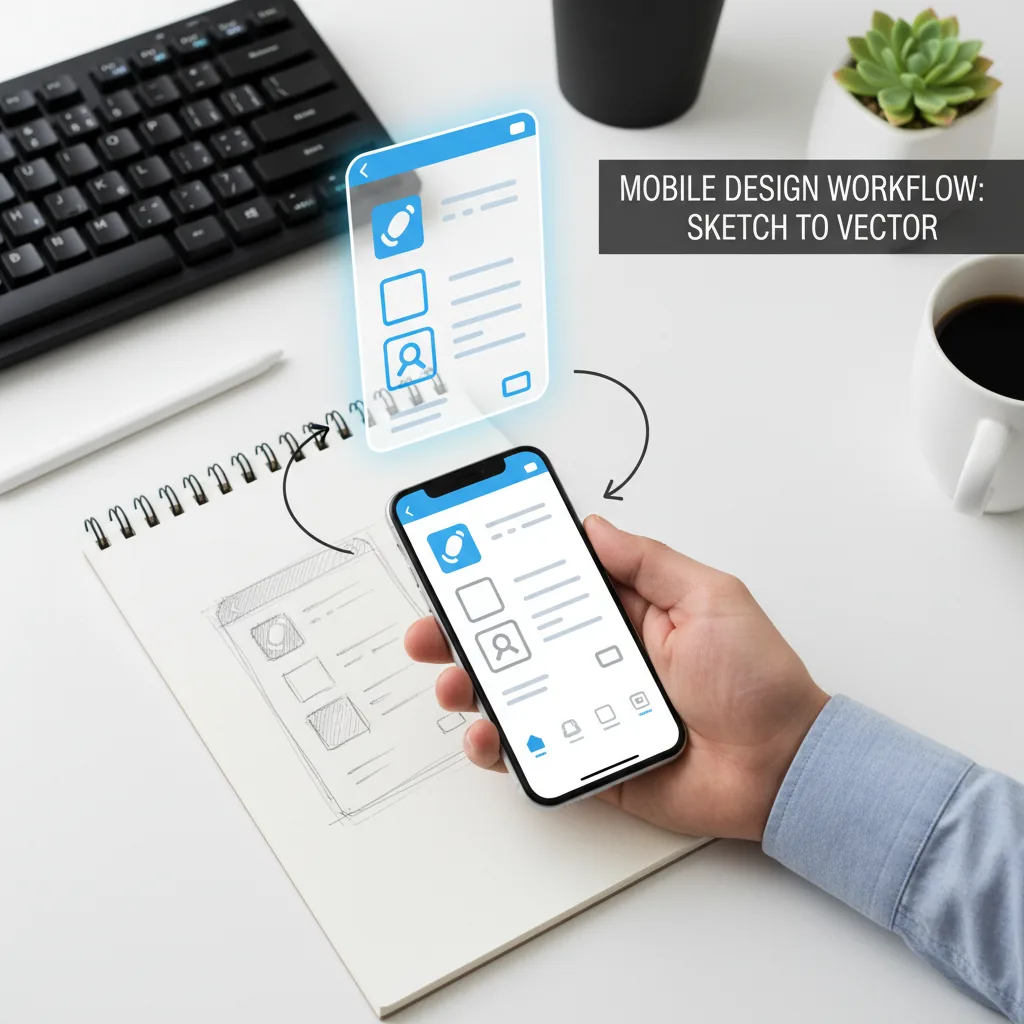
The days of needing a flatbed scanner and Adobe Illustrator are over. In 2026, your phone camera plus VectoSolve gives you a complete mobile vectorization studio. From sketch to SVG in under a minute.
Try Mobile Vectorization — Upload a Phone Photo Free ->
| Phone Camera Tip | Why It Matters | Impact on SVG Quality |
|---|---|---|
| Use natural daylight | Eliminates harsh shadows and color casts | Cleaner edge detection, fewer stray paths |
| Shoot straight-on (parallel) | Avoids perspective distortion | Accurate proportions in vector output |
| White background | Maximum contrast for subject isolation | Easy background removal, fewer artifacts |
| Disable HDR / filters | Prevents artificial tone mapping | More consistent color regions for tracing |
| Save as PNG, not HEIC | Lossless format preserves edge detail | Sharper vectorization vs. compressed formats |